Loading…
Reviewer guide
How CallSherpa works
A short walkthrough for reviewers. Takes 2 minutes to read.
01
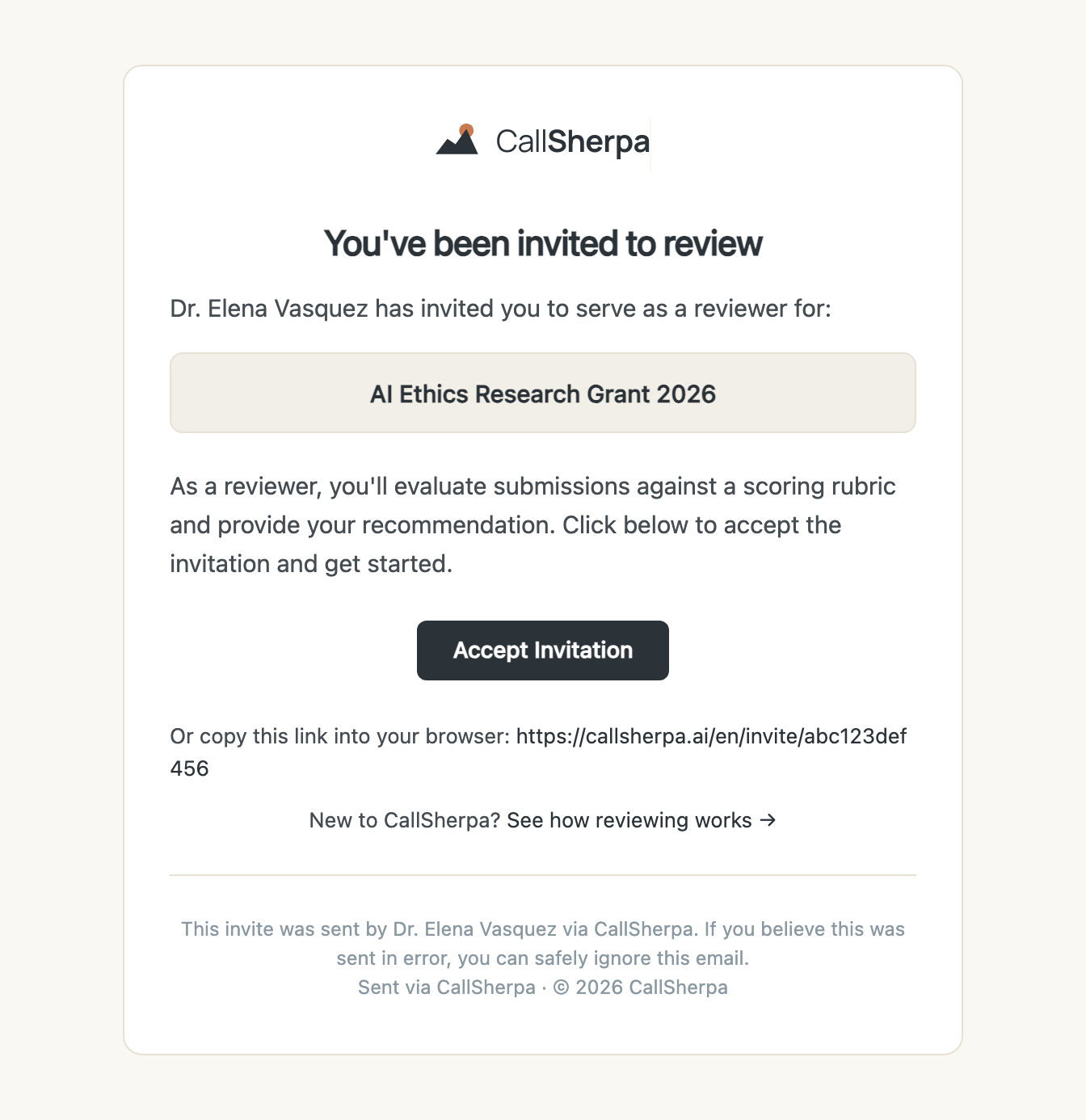
Accept the invitation to review
An organizer invites you to be a reviewer on their call. You'll get an email asking you to accept the invitation. Click Accept to join the call as a reviewer — at this point you haven't been assigned any specific proposal yet.
02
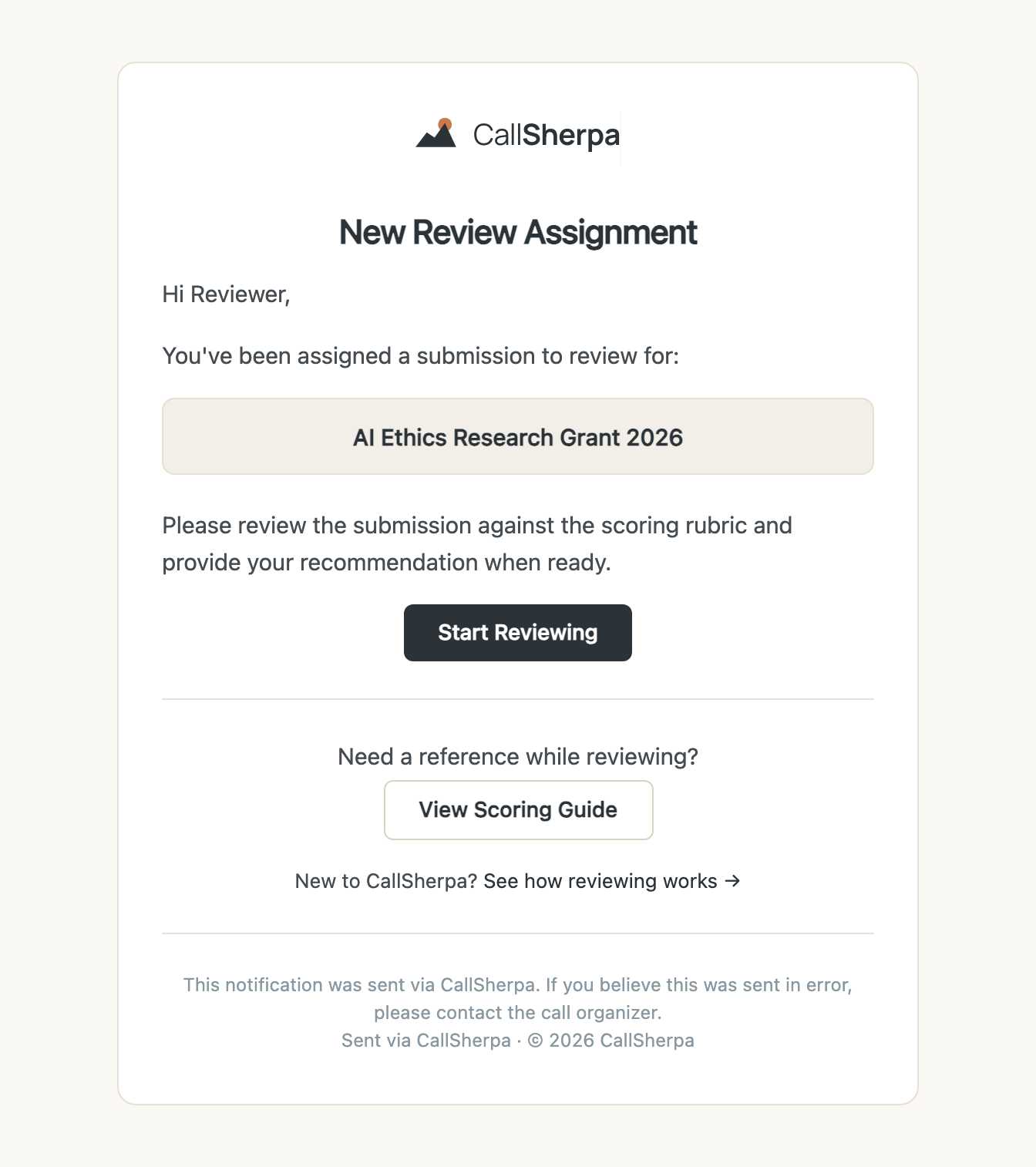
Get assigned to proposals
Once you've accepted, the organizer can assign proposals to you. Each time they do, you get a second email letting you know a review is waiting. You can also check your dashboard at any time — every proposal assigned to you appears there with its due date.
03
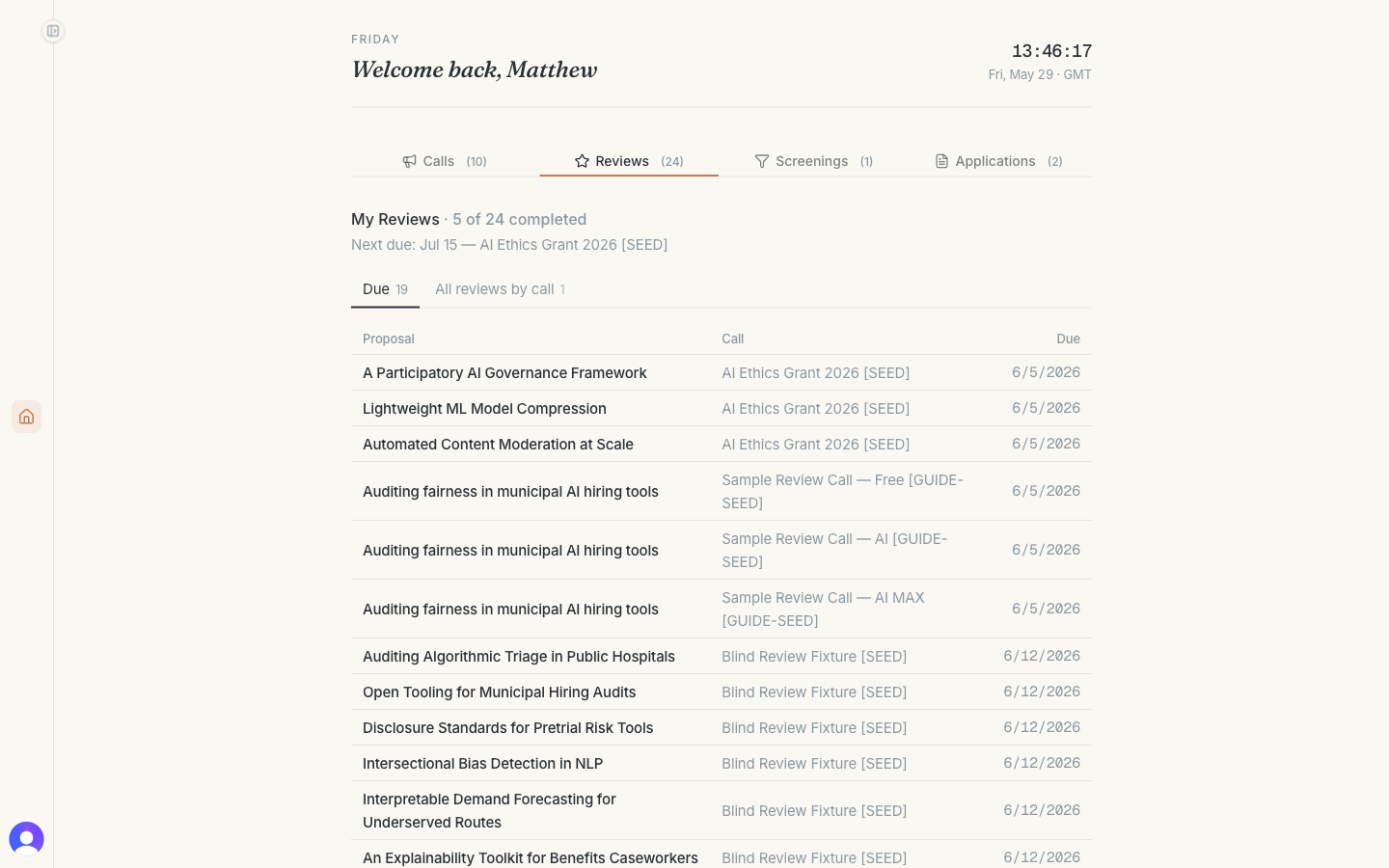
See your reviews on the dashboard
Sign in at any point to see what's on your plate. The dashboard lists every proposal assigned to you, with deadlines and whether you've started.
04
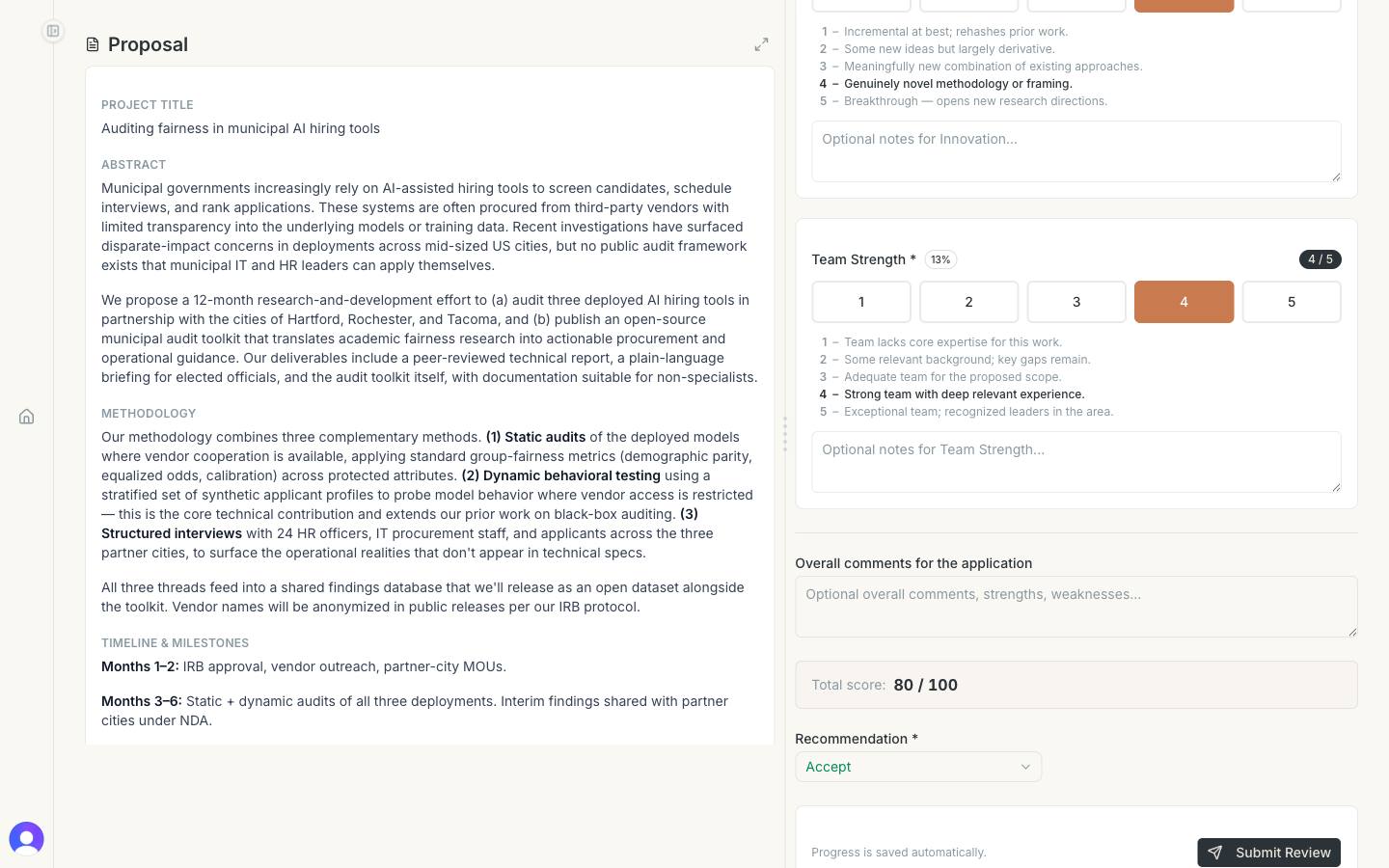
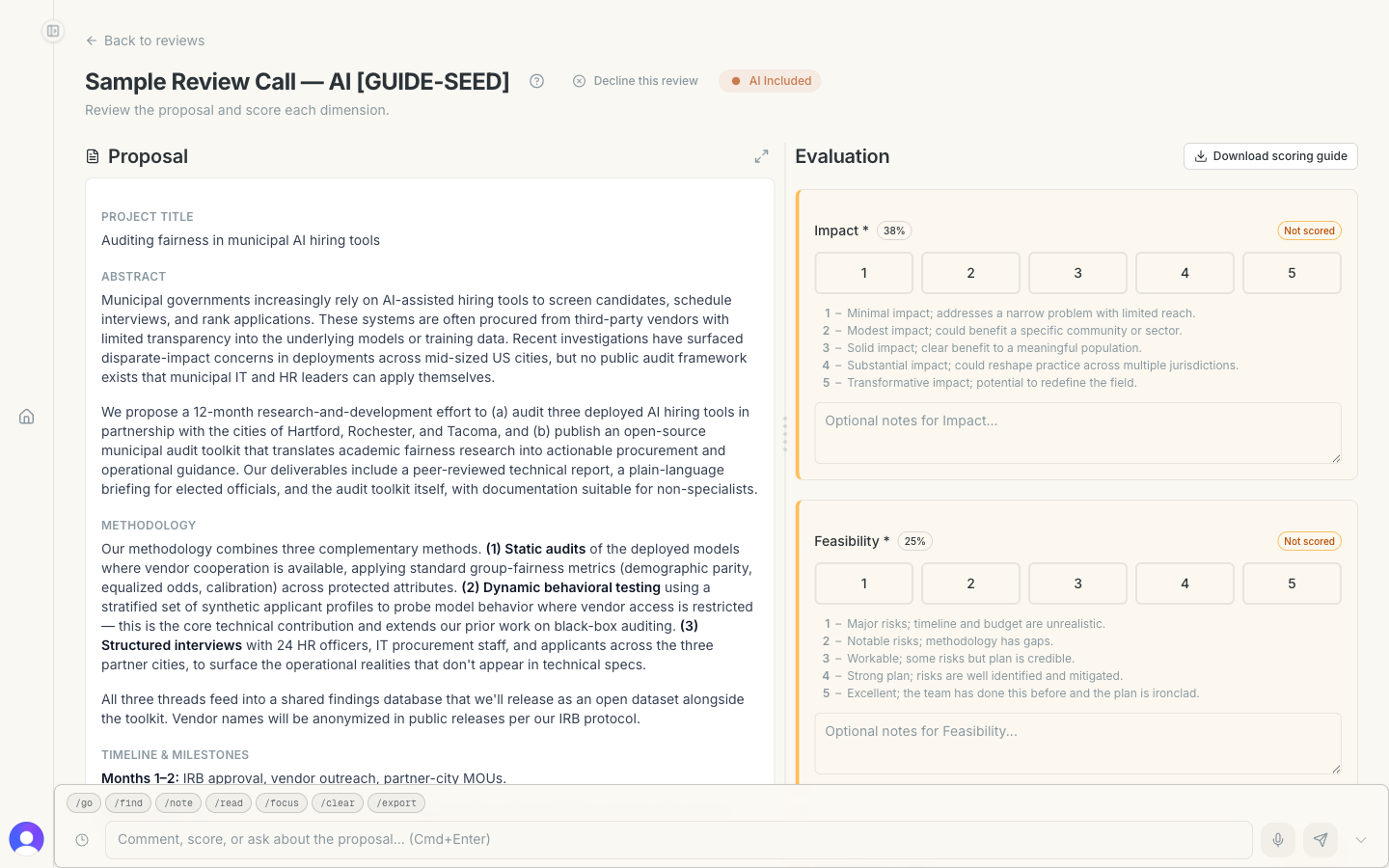
Read the proposal
Click into a proposal to open the review page. The proposal is on the left, your scoring form is on the right. On a phone they stack — proposal first, then form.
05
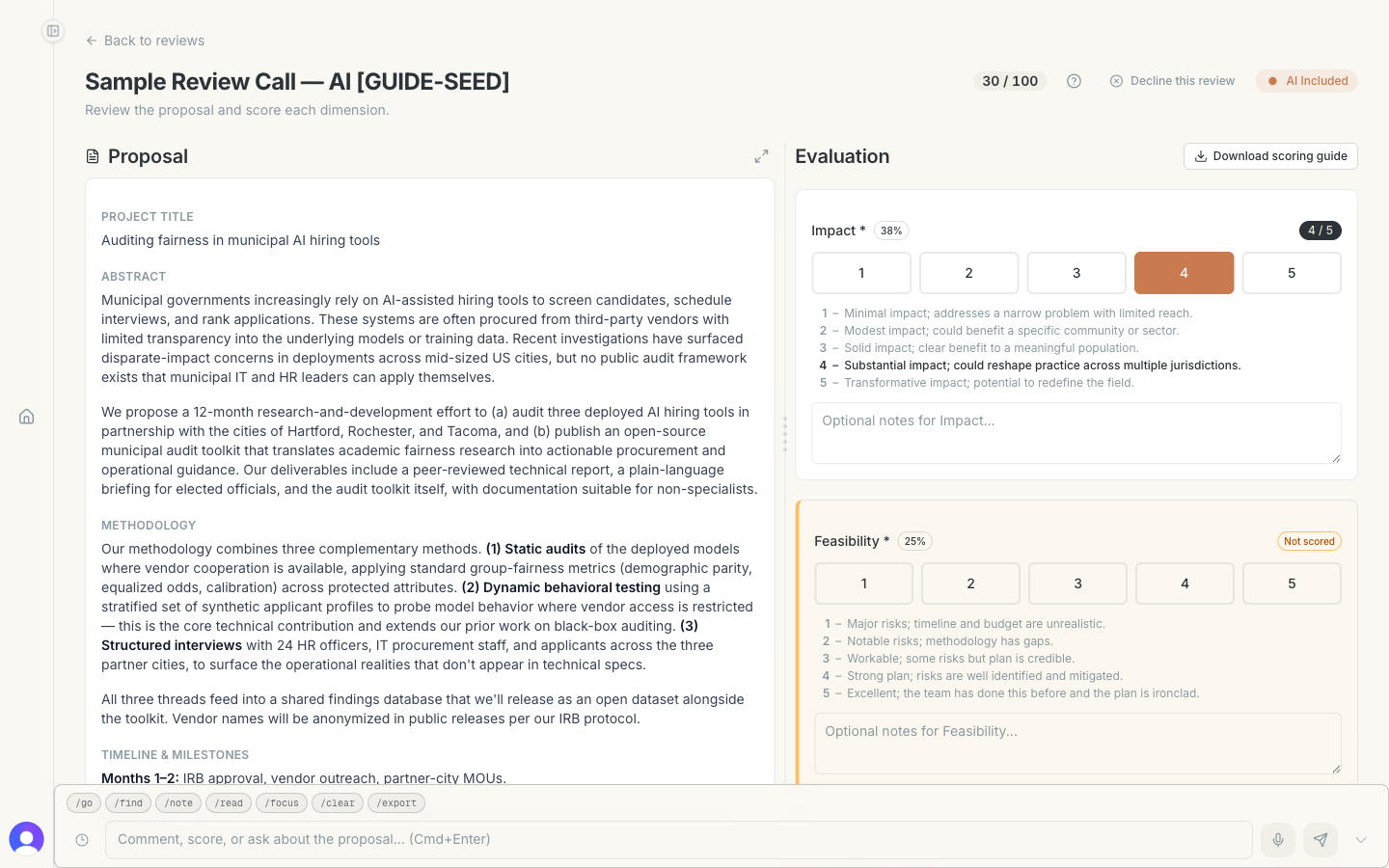
Score against the rubric
Each call has its own rubric — a set of dimensions (impact, feasibility, etc.) and a numeric scale chosen by the organizer (often 1–5, but sometimes 1–3 or 1–4). Click a score for each dimension; CallSherpa weights them automatically and shows your overall score at the top.
06
The chatbar — depends on the call
The bottom-of-screen chatbar is where CallSherpa's AI features live. What it can do depends on which tier the organizer chose for this call. Switch the tabs below to see the differences.
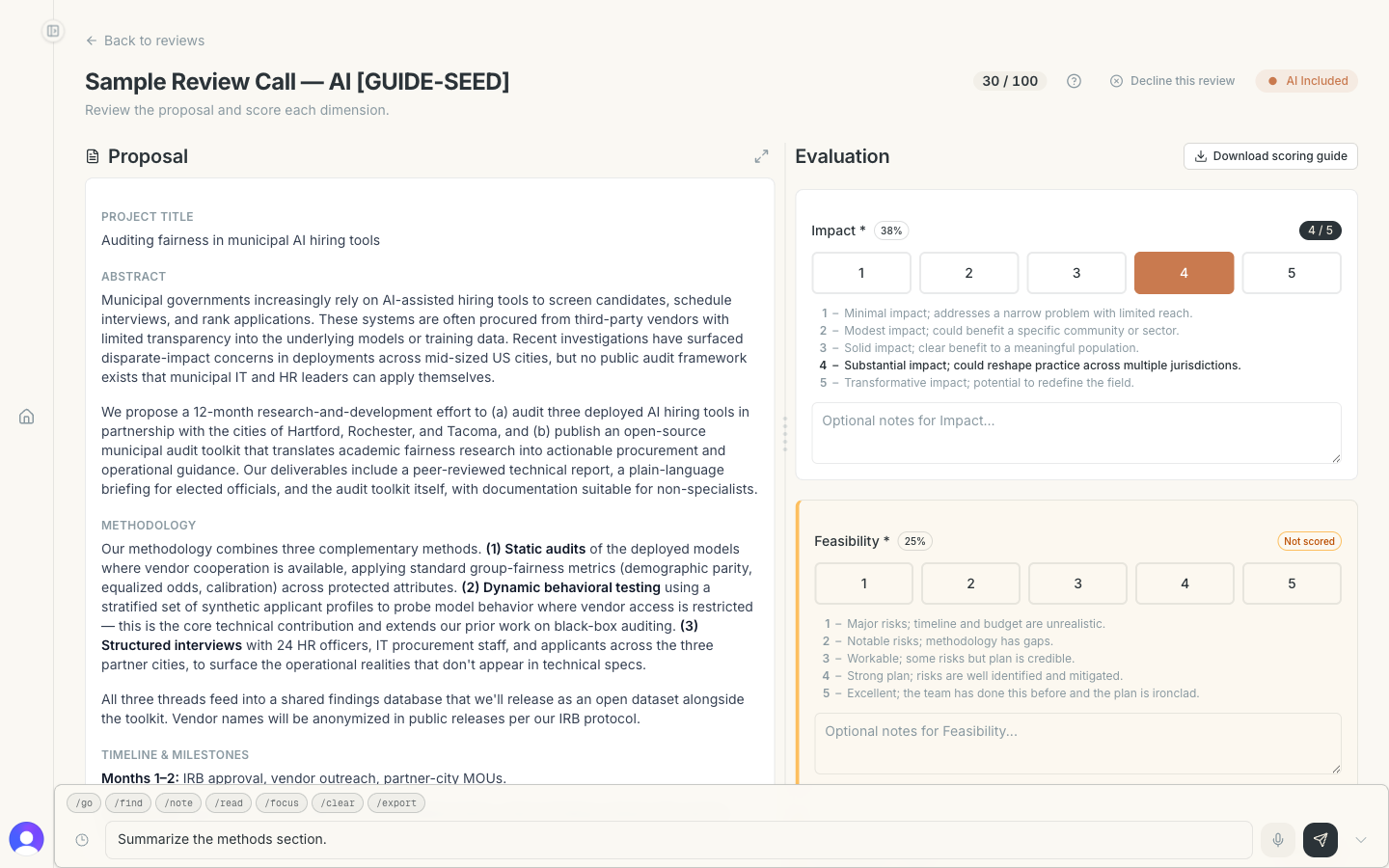
On AI calls, the Sherpa chatbar at the bottom can answer almost anything about the proposal you're reviewing: "Summarize the methods section," "What's the proposed budget?", "Compare this to the rubric." The pills above the input are just shortcuts for common asks — you're not limited to them.
07
Submit when you're done
When every dimension is scored and your comments are written, hit Submit review. You'll see a confirmation, and the organizer is notified automatically. You can't edit a submitted review — if you spot a mistake, contact the organizer.